Creating new templates
There are similar mechanisms for creating new page templates across the Lander Pages/Pre-lander Pages/White Pages sections.
Uploading a new template
To upload a new template, click on the ‘Upload landers’/’Upload pre-landers’/’Upload whites’ button in the upper-right corner of the respective template section.
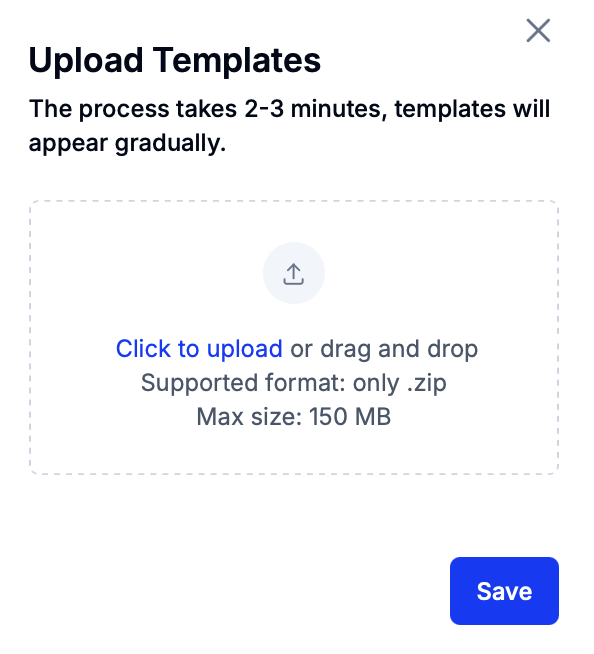
User either drag-and-drop or the click to upload functionality to upload a .zip archive containing PHP or HTML files. It is possible to upload several archives at the same time but the size of each archive must not exceed 150 MB.
The system will display a progress indicator displaying now much of the upload process is remaining. After the indicator reaches 100%, click on ‘Save’ to save the uploaded template.
The template will appear in the grid with its status set to ‘Pending’. The status will change to ‘Success’ once Evernote creates a repository for the template.
Using AI generation
It is possible to create new white page templates using generative AI.
To do so, open the White Pages section and click on the ‘AI Generate’ button. In the modal window, describe the theme of the template and press ‘Generate’.
After several minutes pass, the new template should appear in the grid.