Inviting new members and creating new teams
Inviting new members
To invite new members into the workspace, click on the ‘Invite members’ button in the upper-right corner of the ‘Members’ sub-section.
The following block should appear to the right.

Set the email of the user that needs to be added to the workspace in the text input field. If required, click on ‘Add more’ to add another row with an input field.
After specifying all required emails, click on ‘Send’ to distribute invitations to the workspace.
Creating new teams
Click on ‘Create team’ to add a new team to the workspace. The following block will be displayed to the right.
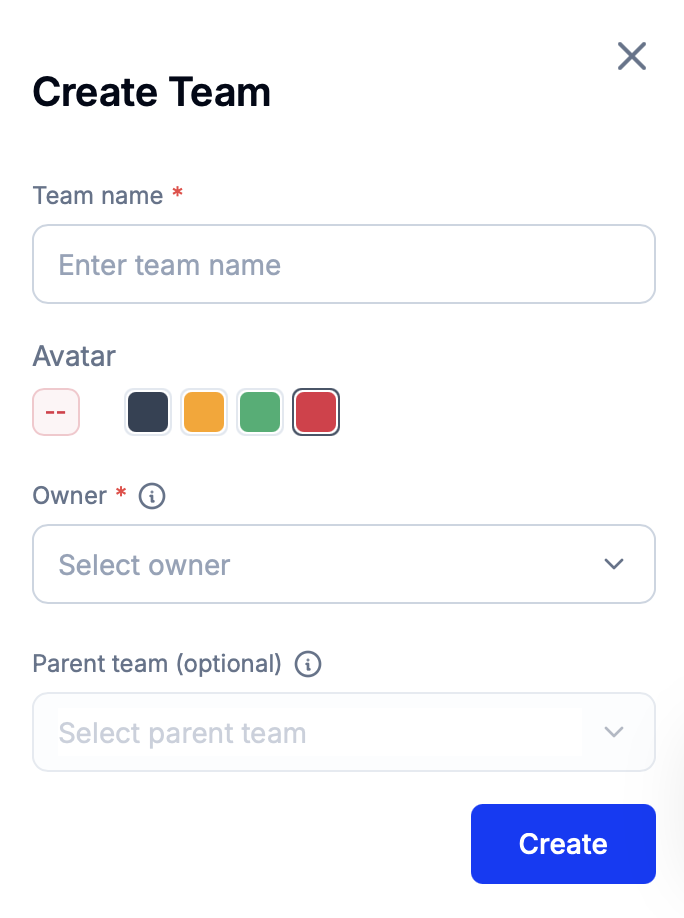
Set the team name and avatar.
Afterward, selec the team owner and, optionally, the ‘parent’ team of the new team. These decisions affect the access rights allocated to the members of the new team.
Permissions model
Read this tutorial to learn more about configuring individual and team-level access rights.