Configuring existing members
Operating the members grid
The Members tab contains a table of all members participating in a workspace.

The table has the following columns.
Column name | Definition |
|---|---|
Name | The name of the workspace member. |
The email of the workspace member. | |
Teams | The teams to which the workspace member is assigned. |
The table is filterable by member name, email or team(s).
Click on the name of a workspace member to open the member details page.
Managing individual members
Permissions model
Read this tutorial to learn more about how permissions work in Eversend.
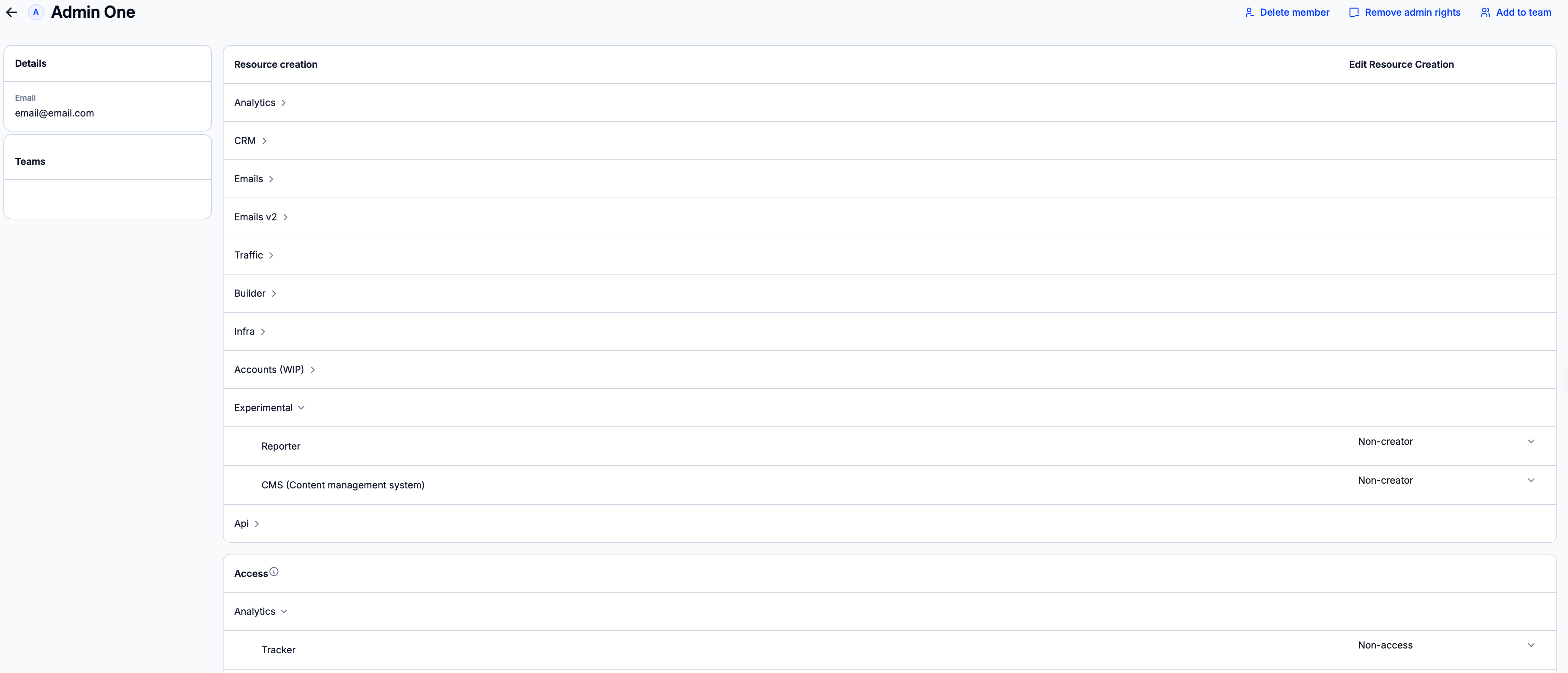
The member details page displays information about the chosen workspace member and allows for editing their parameters and access rights.
Deleting a member
To delete the workspace member, press the ‘Delete member’ button.
Info
If the member belongs to a team, all resources and permissions of said member will be transferred to the owner of this team when the member is deleted.
If the member does not belong to any teams, all resources and permissions of said member will be deleted.
Tip
Before deleting a member, make sure to manually reassign their resources to other members. Switch to a section of the CRM where the deleted member has created or edited resources. Use the ‘Owners’ or ‘Editors’ filters to search for resources linked to the chosen member. If possible, use bulk actions to transfer these resources to another
Changing admin status
It is possible to give/revoke admin access to the member. Any member with admin rights is automatically given access to all resources and sections of Eversend.
To do so, click on ‘Make Admin’/’Remove admin rights’ and then confirm the action in the newly opened modal window.
Adding a member to a team
To add the member to a team, press the ‘Add to team’ button. A new window will open.
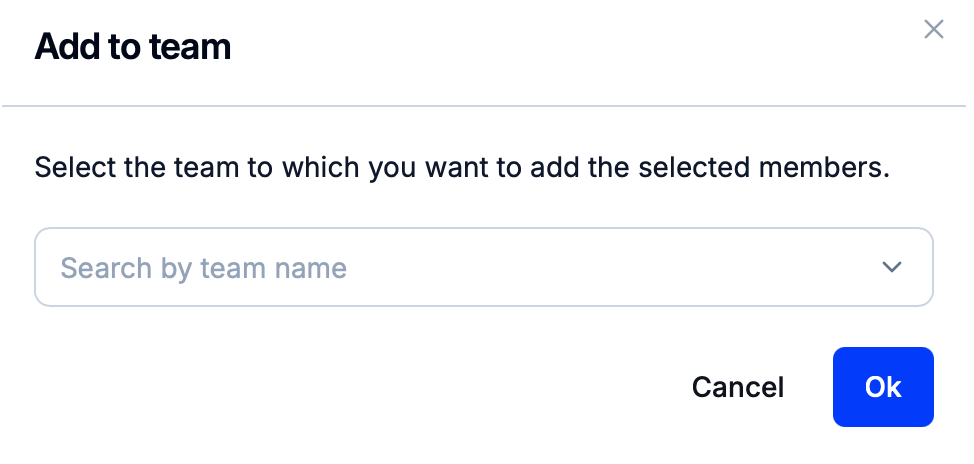
In the dropdown menu, select the required team and then press ‘Ok’.
Tip
It is possible to add a member to more than one team. To do so, open the ‘Add to team’ window again and select another team in the dropdown menu.
Setting up resource creation rules
The ‘Resource creation’ block allows for configuring whether the member can create new resources across various sections of Eversend.
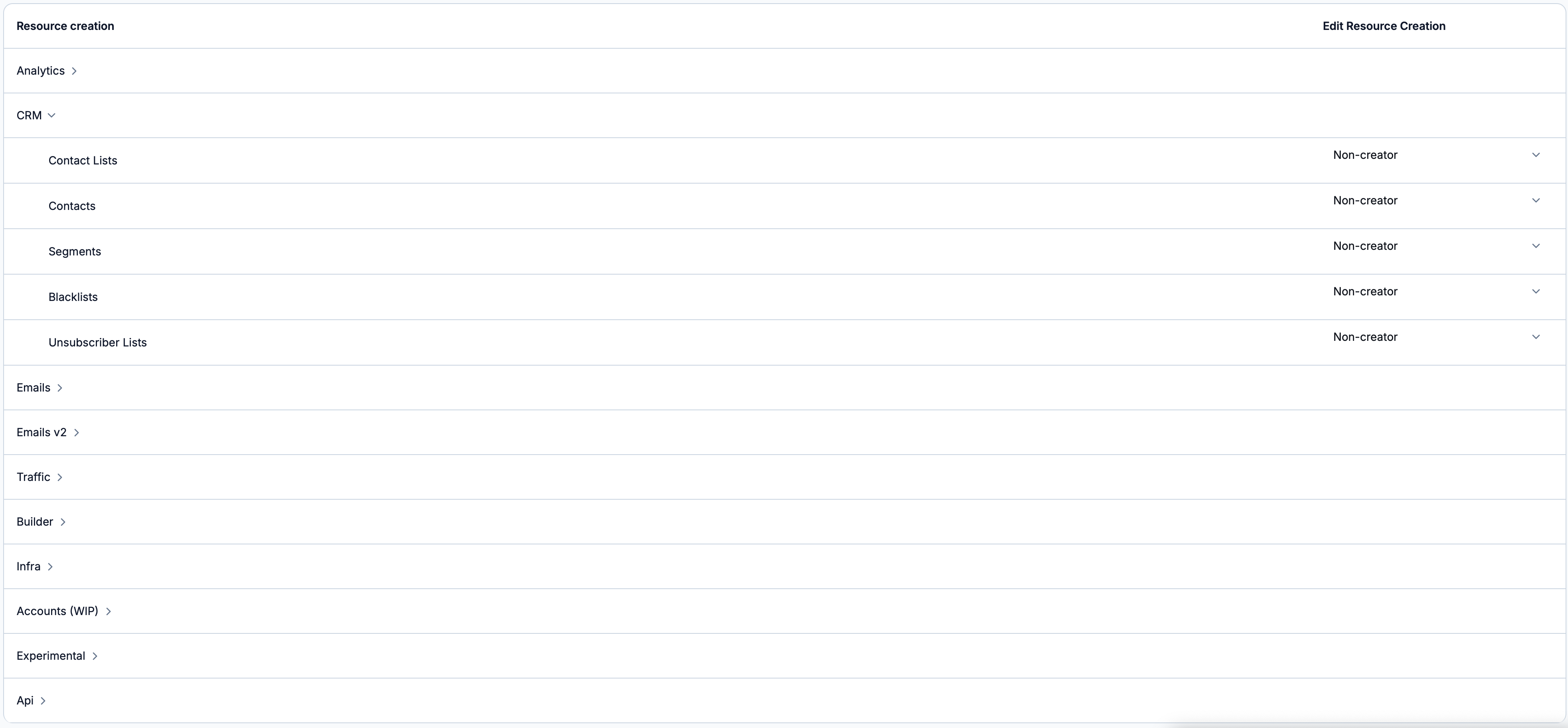
To change the member’s permissions, click on the name of a section. Then, open the dropdown menu to the right of its name and choose among the following options.
Configuring section access
Proceed to the ‘Access’ section to set up access rights to various sections of Eversend.
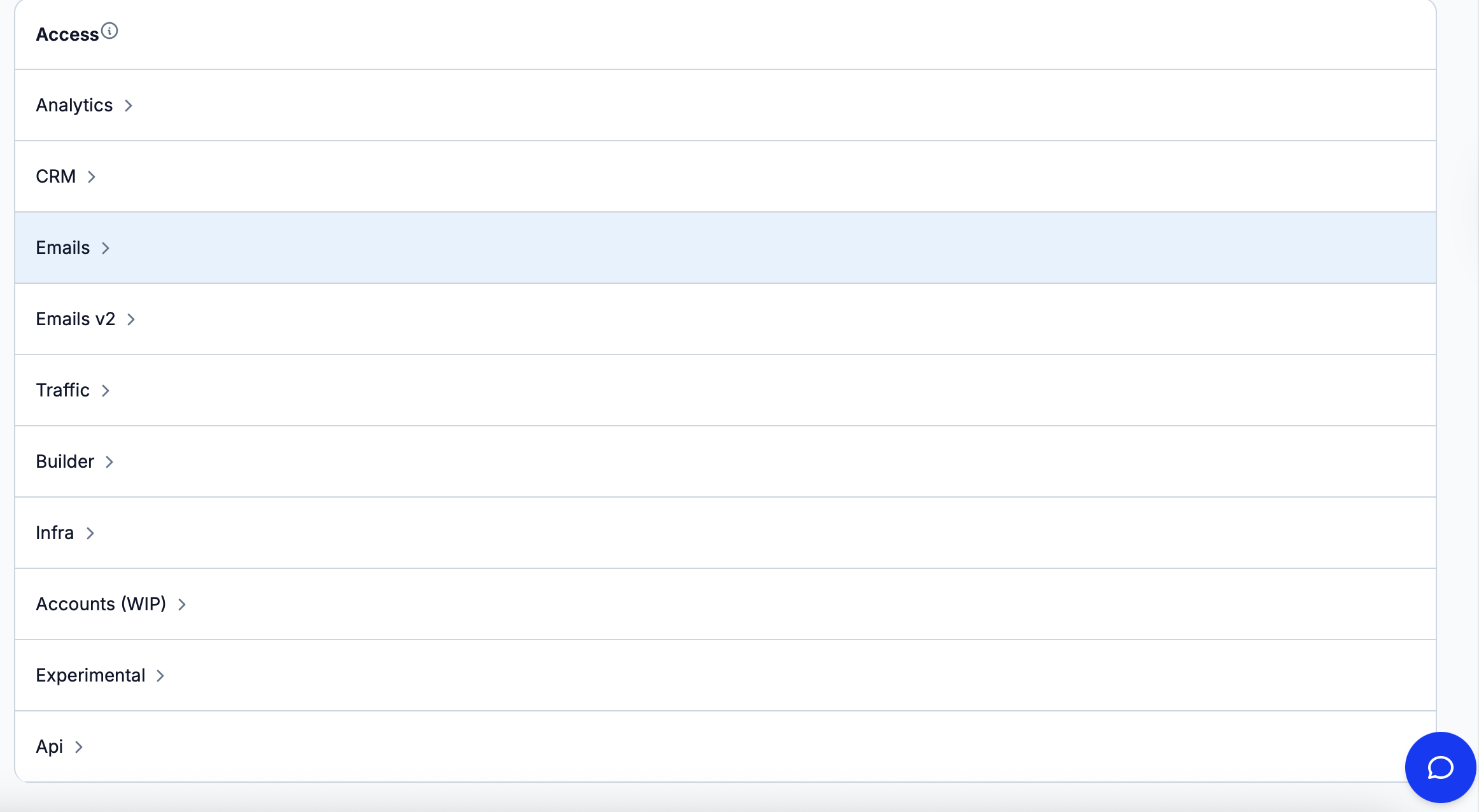
To modify access rights, open a sub-block dedicated to a specific module. Open the dropdown menu to the right of the name of the section whose access rights need to be changed and select the required value among the displayed options.